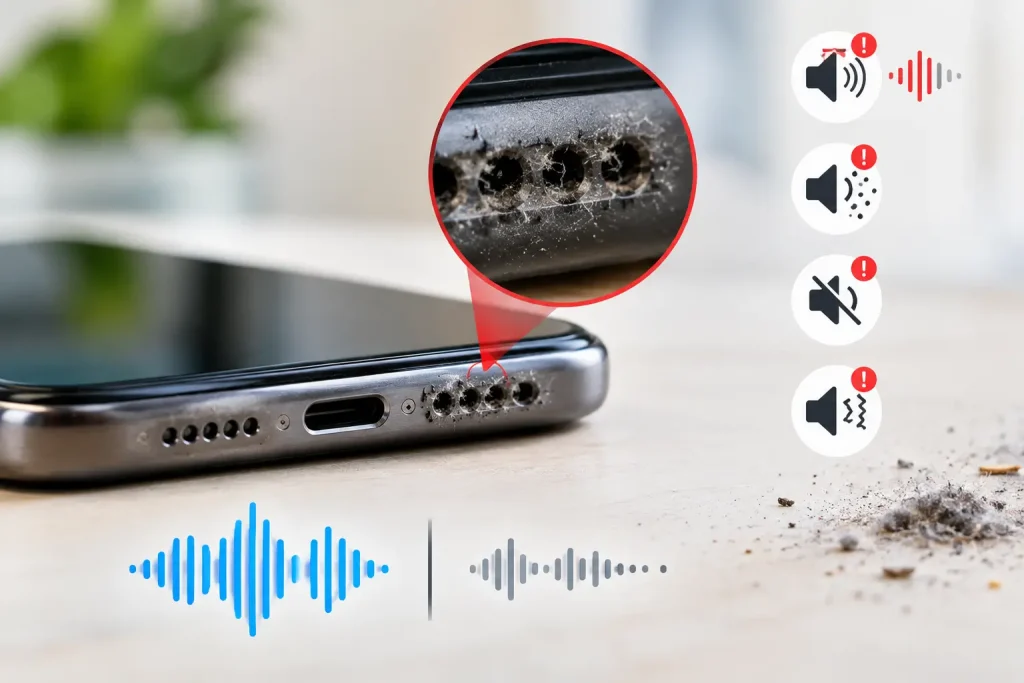
Phone Speaker Dirty? Clear Warning Signs Dust Is Ruining Your Sound
Phone speaker problems can be annoying. You may notice that your music sounds quiet and your videos may not sound...
Learn More
If you are dealing with Samsung phone screen flickering, you may see the display flash, blink, dim, or change brightness without warning. Sometimes the problem happens only when using a certain app. In other cases, the screen may flicker all the time.
A flickering screen does not always mean that your Samsung phone needs a new screen. A temporary software problem, an app, display settings, heat, or an update can sometimes cause the issue. Physical damage, water exposure, or a faulty display can also cause flickering.
Samsung’s current support guidance recommends checking the phone for physical damage, restarting it, checking display settings, installing software updates, and testing the phone in Safe Mode. These steps can help you work out whether the problem is caused by software or hardware.
In this guide, we will explain the common causes of Samsung screen flickering and the simple things you can try at home.
There are several reasons why a Samsung screen may flicker. A small software glitch can make the display behave strangely. An app may also conflict with the phone’s software. Display settings such as adaptive brightness can sometimes affect how the screen looks.
Physical problems are another possibility. A phone that has been dropped, bent, cracked, or exposed to water can develop display problems. The important thing is to notice when the flickering happens.
For example, ask yourself:
These clues can help you find the cause.
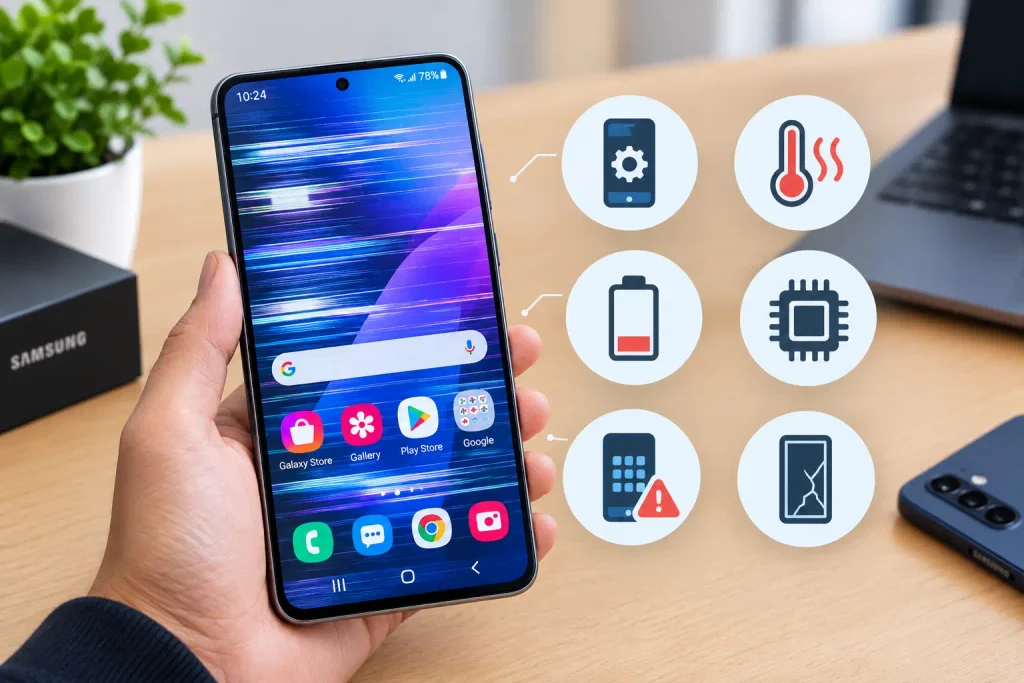
A temporary software problem can affect the way your Samsung controls the display. This can happen after an app crashes, after the phone has been running for a long time, or after a software change. Samsung says temporary system errors, outdated software, and app compatibility problems can cause display issues.
If the flickering started suddenly and there is no visible damage, software is one of the first things worth checking. A simple restart may be enough to clear a temporary problem.
Your Samsung phone automatically changes its screen brightness in some situations. Features such as Adaptive brightness can change the brightness based on the light around you. On some phones, this may make a display problem more noticeable, especially when the screen is very dim.
Samsung recommends testing the display with Adaptive brightness disabled when troubleshooting flickering. You can try:
The exact menu names can be different depending on your Samsung model and software version.
A cracked or damaged display can cause flickering. The glass on your phone may look fine while the display underneath has been damaged. A drop can affect the display panel or other parts inside the phone even when there is only a small mark on the outside.
Flickering that starts after a fall should be taken seriously. Samsung also advises checking the device for physical damage because a damaged screen can cause flickering and other display problems.
Phones can become warm when running demanding games, recording video, using navigation, charging, or working hard for a long time. When a phone becomes too hot, its performance can change. You may notice lag, apps closing, brightness changes, or other unusual behaviour.
If your screen starts flickering when the phone becomes very hot, stop using demanding apps for a while. Remove the phone from direct sunlight and let it cool naturally. Do not put a hot phone in a refrigerator or freezer. Sudden temperature changes can create other problems.
Water can damage parts inside your Samsung phone, including components connected to the display. The phone does not always stop working immediately after water exposure. It may appear normal at first and then develop problems later as moisture or corrosion affects internal components.
Samsung warns that internal damage or corrosion can occur after liquid exposure, even when a Galaxy phone appears to work normally. Samsung also advises against using external heat such as a hair dryer to dry the device. If the screen started flickering after water exposure, avoid repeatedly turning the phone on and off. Have it inspected as soon as possible.
Restarting your phone is one of the easiest things to try. A restart can clear temporary software problems and give the phone a fresh start. Samsung also recommends restarting a Galaxy device when dealing with display problems.
To restart your Samsung:
If the screen becomes normal after restarting but starts flickering again later, continue with the other checks in this guide. If the phone is frozen and you cannot use the normal restart option, the button combination can vary by model. Check Samsung’s support instructions for your specific Galaxy device.
Your display settings can affect how your screen looks.
Start by opening:
Settings → Display
Look through the available display options on your phone. Depending on the model, you may see settings related to brightness, screen mode, motion smoothness, refresh rate, adaptive brightness, and other display features. Try temporarily changing settings that control brightness or display behaviour.
For example, if Adaptive brightness is enabled, turn it off and test the phone. Samsung specifically recommends this as one troubleshooting step for flickering displays. Do not change many settings at once. Change one setting, use the phone for a few minutes, and see if the flickering changes.
This makes it easier to identify what is causing the problem.
An outdated phone can sometimes have software bugs that affect the display. Samsung recommends keeping the phone’s software updated when troubleshooting screen flickering.
To check for an update:
Make sure your phone has enough battery and a stable internet connection before starting a major update. It is also a good idea to update your apps through the Google Play Store and Galaxy Store. If a particular app causes the screen to flicker, updating that app may solve the problem.
Safe Mode is useful when you think an app may be causing the problem. When a Samsung phone starts in Safe Mode, downloaded apps are temporarily disabled. This lets you test the phone without those apps running normally. Samsung recommends Safe Mode as a way to check whether a third-party app is causing the flickering.
To try Safe Mode on many Galaxy phones:
If the screen stops flickering in Safe Mode, a recently installed or updated app may be causing the problem. Think about which apps you installed or updated shortly before the problem began. Remove suspicious or recently installed apps one at a time and test the phone after each change.
Android’s official guidance also recommends checking recently installed apps when a problem disappears in Safe Mode. If the screen continues flickering in Safe Mode, an ordinary downloaded app is less likely to be the cause.
If your Samsung phone started flickering immediately after being dropped, hardware damage is more likely. The impact may have damaged the display assembly or another internal connection. You may also notice other signs, such as:
Do not press hard on the screen to try to make it work normally. Also avoid opening the phone yourself unless you have the right tools and experience.
Modern Samsung phones contain delicate components, and opening the device incorrectly can cause more damage. If the problem appeared after a drop, professional testing can help identify whether the display or another internal component needs attention.
Water-related flickering needs extra care. First, stop charging the phone. If the phone is still on and you can safely turn it off, switch it off. Do not use a hair dryer, heater, or other external heat source. Samsung specifically warns against using heat to dry a Galaxy device after liquid exposure.
Do not assume the phone is safe just because the screen becomes normal after drying. Liquid can remain inside the phone and may cause corrosion later. Samsung recommends having a water-exposed device inspected, even if it appears to work normally afterward.
If flickering began after water exposure, professional inspection is safer than repeatedly testing the phone yourself.
You should consider professional Samsung screen repair when the basic software checks do not solve the problem. Repair is especially worth considering when:
Samsung recommends service when display problems continue or when the device has physical damage.
If you are in Perth, FoneDoc handles Samsung Galaxy screen problems, including screen flickering, cracked displays, water damage, and other Samsung issues. The FoneDoc team also works on Samsung Galaxy devices across the S, Note, and Z Fold/Z Flip ranges.
You can learn more about FoneDoc’s phone repair services or its Samsung phone repair services.
A technician can inspect the phone and determine whether the problem is related to the display, software, liquid damage, or another internal component.
Sometimes, yes. If the cause is a software glitch, app problem, or display setting, you may be able to fix it without replacing any hardware.
However, a damaged display cannot always be repaired with software settings. If the display itself has been damaged by a fall, pressure, water, or another physical problem, screen repair may be needed.
This is why it is useful to test the phone before assuming that the screen needs replacement. If you have already restarted the phone, checked the settings, installed updates, and tested Safe Mode but the problem remains, hardware becomes a stronger possibility.
You cannot prevent every screen problem, but a few simple habits can help protect your phone. Use a good protective case and screen protector if they are suitable for your device.
Keep your phone away from unnecessary heat. Avoid leaving it in direct sunlight for long periods. Be careful around water and other liquids. Even phones with water-resistance ratings are not completely protected from every type of liquid or situation.
Keep your phone and apps updated. Updates can include bug fixes and security improvements. Finally, if your phone is dropped or exposed to liquid and starts behaving strangely, do not ignore the problem. Early inspection can help identify damage before it becomes more serious.
Samsung phone screen flickering can happen for many different reasons. A temporary software problem or display setting may be easy to fix. An app can also cause the issue, which is why Safe Mode is useful for testing. On the other hand, flickering after a drop or water exposure can point to hardware damage.
Start with the simple steps: restart your phone, check the display settings, install software updates, and test Safe Mode. If the screen continues flickering, especially after physical or liquid damage, get the phone checked by a qualified technician.
For readers who want official troubleshooting information, link to:
Phone speaker problems can be annoying. You may notice that your music sounds quiet and your videos may not sound...
Learn More
Your phone screen is cracked or it just won’t charge anymore or it won’t turn on at all, the one...
Learn More
Is your iPhone charging slowly? Common causes include a weak adapter, damaged cable, dirty charging port, degraded battery, excess heat,...
Learn More